Play an Enhanced Version of Descent FreeSpace 2 with FS2Open

⚠️ This was originally posted on August 19, 2011. The information may be outdated!
Descent FreeSpace 2 needs no introduction to most PC gamers who grew up in the 90s. To this day it’s one of the best space combat simulation ever made in my opinion. I don’t think it tops the X-Wing and TIE Fighter games, but it’s still a must-have for sci-fi and space simulation fans.
If you were to install FreeSpace 2 without any modifications, it would still hold up OK. However, thanks to the release of its source code several years ago, the FreeSpace 2 Source Code Project (FSSCP) has made a ton of enhancements to the game, culminating in the current version of FreeSpace 2 Open (FS2Open – 3.6.12 as of this writing). With a little extra work, you can enjoy FreeSpace 2 with modern graphics and audio, several additional campaigns, and even the entire FreeSpace 1 campaign.
Installation
These instructions are for Windows 7 x64, but they shouldn’t be too different for OS X or Linux users. First, you’ll need to install Descent FreeSpace 2. If you need a copy, I recommend Good Old Games (it’s where I bought my copy from as I no longer had my original discs from years ago). If you get it from here, I recommend you change the installation location from the default C:\Program Files (x86)\GOG.com\Freespace 2\ to C:\Games\Freespace 2\. The Program Files directory is protected with additional security, which can create issues with mods for the game. It’s not a requirement to change the installation location, but it can alleviate potential headaches down the road if you decide to start using lots of mods. It also keeps your pilots and some other files in the same directory instead of being saved in a different location (C:\Users\[username]\AppData\Local\VirtualStore\Program Files (x86)\GOG.com\Freespace 2\). Once the game is installed, download the FSO Installer (look for the small “Download” link near the top of the page), unzip it, and run the FreeSpaceOpenInstaller.exe executable.
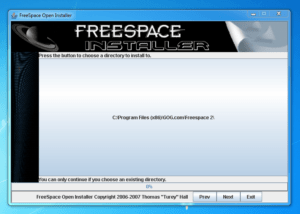
Click on the first screen. The second screen indicates the path where FreeSpace 2 is installed. If you used the GOG.com version without changing the installation directory, you’ll need to change the path from C:\Games\Freespace2\ to C:\Program Files (x86)\GOG.com\Freespace 2\. Once the path is correct, click .
Unless you have a reason not to, check the box for The Works: Absolutely Everything. This will make sure you have all the latest updates to the game, the latest graphical updates, and custom campaigns including FreeSpace 1. Click .
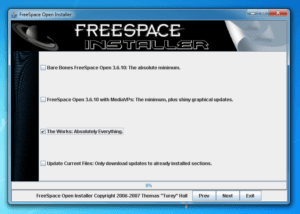
The next screen will let you selectively uncheck any items that you don’t want. I unchecked the Linux and Macintosh executables because I’m using Windows, but otherwise I left everything checked. Click to begin installing FS2Open. The installation takes quite a while, but it’s fully automated so you can walk away and do something else. It took about an hour over my cable internet connection to download and install everything. When it’s done you can exit the installer.
Configuration
When I installed FreeSpace 2 from GOG.com, the installation created a shortcut on my desktop. You don’t want to use this shortcut to launch the game, because it won’t allow you to set up all of the enhancements of FS2Open. Instead, look for the launcher.exe file in the FreeSpace 2 directory and create a shortcut to that on the desktop or in the start menu (your preference). This is the file you should run whenever you play the game.
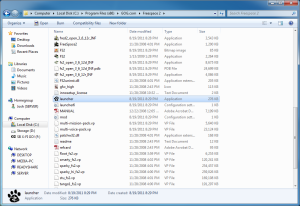
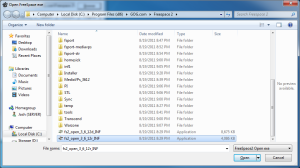
Run the launcher program now. You might get a warning message stating that the launcher must be in the same directory as the game’s executable file. This happens because the launcher must first be told where the FS2Open executable file is located. Click the Browse button at the top of the launcher, and find the fs2_open_3_6_12r_INF.exe file. The file with a “d” instead of an “r” after the version number is for debugging purposes, so don’t use it unless you plan on developing for FS2Open.
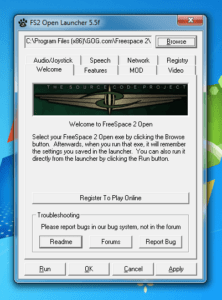
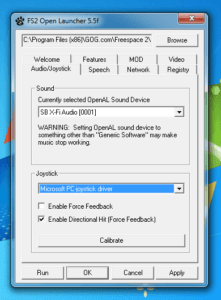
At this point, the game is ready to go, and you can click the button to jump in and start playing. However, I’d recommend making a few changes to the settings in the other tabs of the launcher. First and foremost, make sure you’ve got a joystick plugged in, go to the tab, and select your joystick from the drop-down menu in the Joystick section.
Next you should go to the tab and make some changes. If you’ve got a fairly decent computer, you can try the Easy setup drop-down menu and select “All features on” to enjoy most of the graphical enhancements that FS2Open offers. The Custom flags section allows you to tweak things further based on your preference. I’d suggest poking around some forums for suggestions on this setting.

On the tab, set the Resolution to your monitor’s native resolution, Color Depth to “32-bit,” Texture Filter to “Trilinear,” and Anisotropic Filter and Anti-Aliasing to your preference. Under General Settings, select “4. High” from the drop-down menu, and check the box for “Use large textures.”

Some of the settings I recommended might be too high depending on your computer, so feel free to experiment until you get a good, smooth framerate and acceptable visual quality.
If you want to experience the FreeSpace 1 campaign before trying FreeSpace 2, open the tab, click on , and select the fsport-mediavps folder. This will let you play the campaign from FreeSpace 1 using all of the enhancements of FS2Open. Click to start the game. Once you get into the game’s main screen (it looks like a hangar deck), you must select a campaign before starting any missions or you’ll encounter issues. Select “The Great War” from the list of available campaigns to play all of the missions from FreeSpace 1.
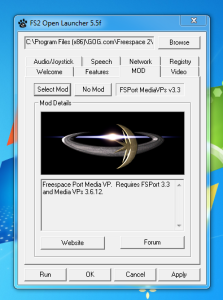
Once you’ve completed all of the missions from a mod (or you don’t want to play it anymore), you can select a different mod from the launcher or click the button to play the vanilla FreeSpace 2 campaign. However, I’d recommend playing with the Media VPs mod enabled for enhanced artwork and assets that take full advantage of FS2 Open’s capabilities.
Update November 21, 2015
I recently reinstalled FS2 Open and noticed a few changes. First, I was getting an error message when starting the launcher. Apparently this is an issue in Windows 8 and 10. Instead, you can download and use wxLauncher. This launcher is designed as a cross-platform replacement for the old launcher.
Another issue I noticed is related to sound. In the game certain sound effects were missing or would only play occasionally (e.g. laserfire). This seems to be related to OpenAL, and I was able to use OpenAL Soft instead of Creative Labs’ OpenAL to fix the issue so far (I have a Creative Labs X-Fi Titanium sound card). I downloaded the latest version (openal-soft-1.17.0-bin.zip as of this writing), and in the zip I copied /bin/Win32/soft_oal.dll into my C:/Windows/System32 folder and also into the root folder where I installed FreeSpace 2 (e.g. C:/Games/FreeSpace 2/). I had to rename OpenAL32.dll in the System32 folder to OpenAL32.dll.old (just in case) and rename soft_oal.dll to OpenAL.dll in both the System32 folder and the FreeSpace 2 folder. Then in the wxLauncher Basic Settings tab I selected the “Generic Software on Speakers” as the Playback device in the Audio section. This resolved my sound issues.
Advanced Configuration
If you want to tweak the game some more to enhance your experience further, the open source nature of the project allows you a ton of options. I was fairly intimidated at first because I didn’t really know much about the project or how things worked. Heck, I still don’t, but the community is very helpful in the forums and I’ve managed to make a few changes to suit my preferences.
Eyefinity
Update November 21, 2015: I now run an nVidia card and use nVidia Surround instead of AMD Eyefinity for triple monitor gaming, but for either setup there is now a patched build of FS2 Open (version 3.7.3 as of this writing) that fixes the HUD and other game elements to work well without adjusting HUD tables. Just download the build (try this link first (Windows only), then if the previous link doesn’t work you can download a copy from this site) and select it as the FS2 Open executable in the launcher.
The first thing I did was to adjust the HUD to stay centered when running the game in Eyefinity with my triple 24” monitors. Originally, the game stretched the HUD across all three monitors, which didn’t work well at all.
To fix this, you can download the Antipodes 7 HUD overhaul executable (fs2_open_ant_7r_INF) and copy it into the main Freespace 2 folder. Open the FS2 Open Launcher and browse to this file instead of the standard fs2_open_3_6_12r_INF.exe file. The Antipodes file allows the use of HUD tables to properly scale and position the HUD for widescreen and Eyefinity resolutions. Check out this thread for more details.
To setup the HUD for Eyefinity, create a plain text file, paste the following code into it (adapted from widescreengamingforum.com), and save it as hud_gauges.tbl into the Freespace 2\data\tables folder.
#Gauge Config
	$Base: (5760, 1080)
	$Required Aspect: Wide Screen ; Can be "Wide Screen" or "Full Screen" ATM
	$Min: (4320, 900);
	$Max: (7680, 1600)	 ; These Min and Max fields are Inclusive
	$Gauges:
		+Messages:
			Position: (1930, 7)
		+Training Messages:
			Position: (2651, 175)
		+Multiplayer Messages:
			Position: (1935, 337)
		+Support:
			Position: (2805, 750)
		+Damage:
			Position: (2769, 85)
		+Wingman Status:
			Position: (3718, 202)
		+Auto Speed:
			Position: (3771, 946)
		+Auto Target:
			Position: (3771, 911)
		+Countermeasures:
			Position: (3618, 846)
		+Talking Head:
			Position: (1930, 79)
		+Directives:
			Position: (1930, 391)
		+Weapons:
			Position: (3618, 738)
		+Objective Notify:
			Position: (2761, 259)
		+Squad Message:
			Position: (3515, 7)
		+Escort View:
			Position: (3618, 391)
		+ETS Weapons:
			Position: (3618, 911)
		+ETS Shields:
			Position: (3652, 911)
		+ETS Engines:
			Position: (3686, 911)
		+Target Monitor:
			Position: (1930, 829)
		+Extra Target Data:
			Position: (1930, 777)
		+Target Shields:
			Position: (2610, 942)
		+Radar:
			Position: (2776, 828)
		+Player Shields:
			Position: (3054, 942)
		; If you want different types of radar running, be my guest
		;+Radar Orb:
		;	Position: (2763, 828)
		+Afterburner Energy:
			Position: (2507, 526)
		+Weapon Energy:
			Position: (3187, 526)
		+Text Warnings:
			Position: (2907, 386)
		+Center Reticle:
			Position: (2860, 525)
		+Mini Target Shields:
			Position: (2887, 662)
		+Throttle:
			Position: (2592, 380)
		+Threat Indicator:
			Position: (3070, 380)
		+Voice Status:
			position: (1930, 231)
		+Ping:
			Position: (3648, 7)
		+Lag:
			Position: (3128, 744)
		+Supernova:
			Position: (2248, 238)

		+Target Brackets: ; Target Brackets, Lock Indicator, Lead Indicator, and Offscreen Indicator don't need a "Position:" field.
		+Lead Indicator:
		+Lock Indicator:
		+Offscreen Indicator:
		+Hostile Triangle:
			Position: (2907, 540)
		+Target Triangle:
			Position: (2907, 540)
		+Missile Triangles:
			Position: (2907, 540)
		+Orientation Tee:
			Position: (2907, 540)
		+Mission Time:
			Position: (3771, 1007)
		+Kills:
			Position: (3618, 877)
		; FS1 specific gauge
		;+Weapon Linking:
		;	Position: (3073, 543)
		; Komet's lead sight. Looks for "leadsight.ani"
		;+Lead Sight: default
	$End Gauges
#End
The above code is designed for three 1080p monitors (1920×1080) with no bezel correction. If you are using a different resolution, or if you are using bezel correction, you’ll need to adjust all of the coordinates (X, Y) accordingly.
If you are using bezel correction at 1080p resolution, just take half of the difference between the bezel-corrected width resolution and 5760, then add that value to the X coordinates. For example, if your bezel-corrected width resolution is 5940, you’d first calculate half the difference between the resolutions: (5940-5760)/2 which equals 90. Then add that amount to the first number in each pair of coordinates.
If you are using Eyefinity, but your monitors have a different resolution, you’ll need to multiply each value by the percentage of the original value that your monitor setup equals. For example, if you are using three 1680×1050 monitors, your total Eyefinity resolution is 5040×1050. Therefore you’d multiple all of the X coordinates by 0.875 (5040/5760) and all of the Y coordinates by 0.972 (1050/1080) to scale the HUD properly. Once you get the HUD setup properly, the results are really good:




I did notice one downside to using Eyefinity in that the lock indicator for missiles had greatly exaggerated left/right movements. Normally, locking on to an enemy fighter is a matter of keeping them in your sights for a few seconds. Any movement of your ship will “pull” the lock indicator in that direction by a small percentage. Because of the extremely wide HUD area in an Eyefinity setup, this percentage results in a much larger movement, which makes locking onto a moving enemy fighter with a missile very difficult.
TrackIR
Update November 21, 2015: The scptrackir.dll file seems to now be included when downloading FS2 Open using the FSO Installer, so this step may no longer be needed for TrackIR users.
Update November 22, 2015: Without a visible cockpit, using TrackIR can make it harder to know where you are looking in relation to your ship orientation. There are some resources for adding cockpits to FS2 Open that you can try.
I recently picked up a TrackIR 5 and found that it also works with FS2Open. All you need to do is add the scptrackir.dll file (scptrackir) to the main Freespace 2 directory and it just works. Check out this thread for more information. Here are a couple of videos I recorded using TrackIR:
Additional Resources
This is only a sample of what you can do with FreeSpace 2 Open. Visit the following links for more information about the game and the FreeSpace Source Code Project:
Comments
Comments are closed