Harmony Pro 2400 Remote Unable to Reach Hub

My Logitech Harmony Pro 2400 Remote has lost its connection to its Hub a few times over the years. The most recent time happened after the remote’s battery drained completely and it shut off. Bringing the remote closer to the hub–even setting it right next to or on top of the hub–doesn’t work. Re-pairing the remote by pressing the Pair button on the back of the hub and holding down the Menu and Mute buttons on the remote to initiate pairing doesn’t work either.

Like a lot of technical problems, things seems to start working once everything is turned off and on again, and restored from a backup. This is the process that has worked for me, so I wanted to document it here for my future self and anyone else who might run into this problem. Note that I am using the Pro 2400 Remote with the gray color around the charging contacts–not the Elite remote–and the Pro 2400 Hub that supports ethernet and six IR blaster ports–not the standard Hub that is Wi-Fi only.
Here are the steps that worked for me (emphasized Hub and Remote for clarity):
- Unplug the Hub from its power source (I use PoE so I unplug the ethernet cable).
- While the Hub is unplugged, open the Harmony app on your phone, navigate to the Switch Hubs screen, and long-press on the Hub to forget it.
- Turn off the Remote by holding the Off button until the screen goes blank. Verify that it is off by pressing some buttons and tapping on the screen.
- While pressing and holding the Pair button on the back of the Hub, plug it back in to power.
- Once the LED on the front of the Hub starts flashing red rapidly, let go of the Pair button.
- The app should detect the Hub so it can be set up again; start the set up process.
- Once the app asks you to put the Remote in the charging cradle, do so with the Remote still powered off.
- The Remote should power on and after about 20 seconds it should reconnect to the Hub.
- The app will offer you the option of restoring your configuration; choose that option and things should work again just like before.

Bluetooth Devices
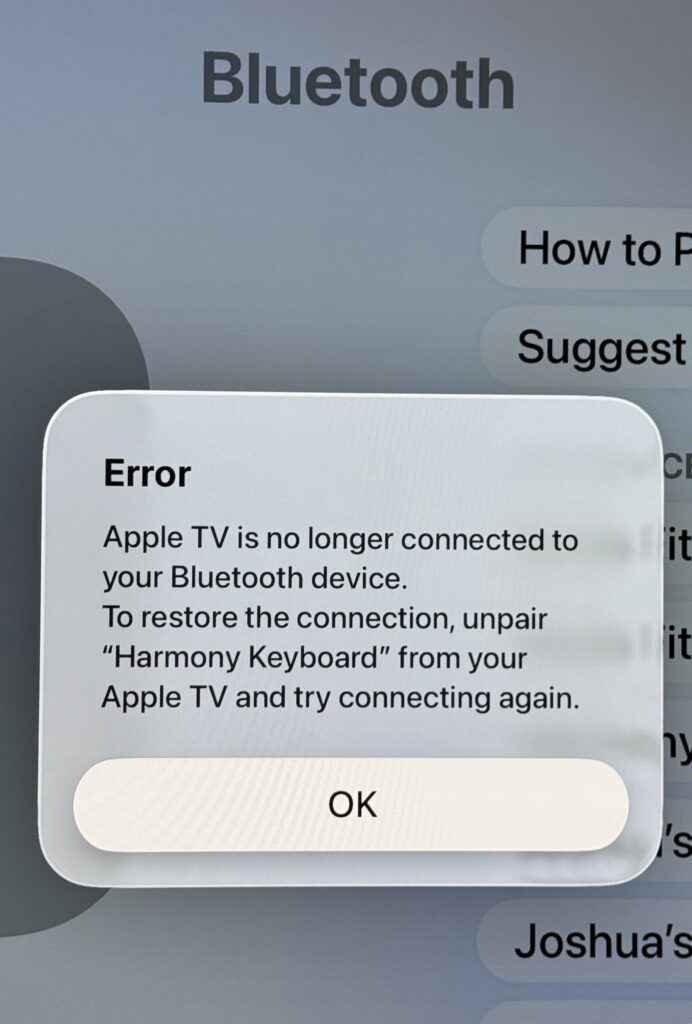
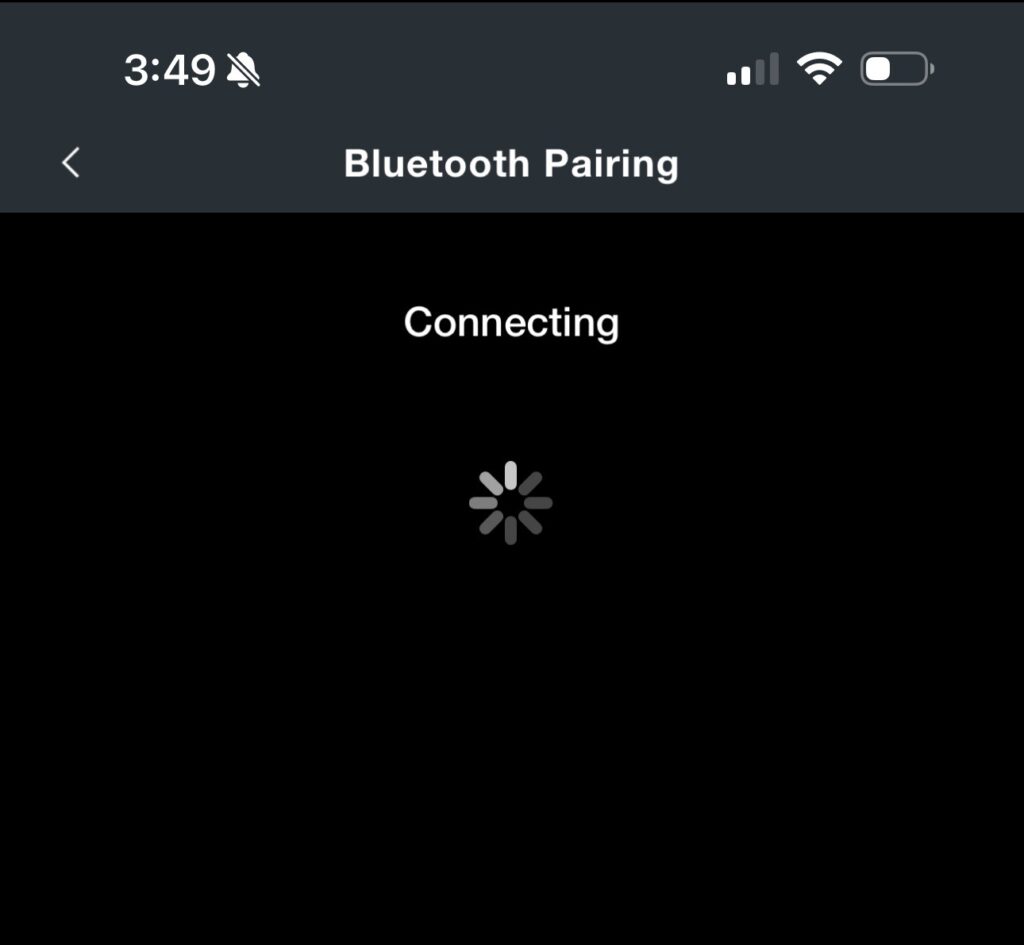
If you use the Hub to control devices via Bluetooth, you may need to pair them again. For my Apple TV, I use both IR commands and Bluetooth commands because neither option supports all available commands for the Apple TV. Therefore I have it set up as two separate devices. To pair it again, I needed to forget the device in my Apple TV settings, then navigate to the Apple TV Bluetooth device in the Harmony app and press a command (e.g. the Home command). This triggered the hub to pair and after a few moments it was working again.
IP Control Devices
My AV equipment is hidden inside some cabinets, so I chose to control my Sony OLED with the Harmony Hub via IP control when I first configured everything. I did not have line-of-sight from the Hub to the TV. This requires pairing the Hub to the TV by entering a code into the Harmony app that the TV displays on screen. Unfortunately like Bluetooth, this pairing did not survive the wipe and restore process.
In order to “restore” the pairing, I had to navigate to my Sony TV device in the Harmony app, try to control it, and the app prompted me to enter the code displayed on the TV. The TV however was not displaying any code, which tripped me up for a while. Fortunately others had the same experience and offered a solution that worked for me too. I was able to enter “1234” as the code and it worked! There is a Spaceballs luggage combination joke in there somewhere…