Format Hyper Backup File Change Detail CSV File Sizes in Excel

I recently looked into some of my Synology NAS‘ Hyper Backup file changes because my backup size had grown very quickly. You can download a CSV file listing all of the new, modified, and deleted files in each Hyper Backup version. Unfortunately the file sizes are provided as plain text using “Bytes”, “KB”, or “MB” notation, which makes sorting by file size in Excel work incorrectly even when you create a table using all of the data. A “92 Byte” file will show up last compared to a “10 MB” file, for example.
To get around this, I created a new column with the following formula:
=IF(ISNUMBER(FIND("GB",[@Column3])),LEFT([@Column3],FIND(" ",[@Column3])-1)*1000000000,IF(ISNUMBER(FIND("MB",[@Column3])),LEFT([@Column3],FIND(" ",[@Column3])-1)*1000000,IF(ISNUMBER(FIND("KB",[@Column3])),LEFT([@Column3],FIND(" ",[@Column3])-1)*1000,LEFT([@Column3],FIND(" ",[@Column3])-1)*1)))This looks for the “GB” text first, then multiplies that number by 1000000000. Otherwise it looks for “MB” and multiplies the number by 1000000, then “KB” by 1000. Finally, if neither is found it multiplies the number by 1. The result is that a “1 MB” file has a value of 1000000, a “1 KB” file is 1000, and a “1 Byte” file is 1, etc. Then I was able to sort by this column to see the largest files that were being added/modified/removed from my backups.
Another formatting tip I found was to set the entire column to a custom number format in Excel, using this custom format to show the raw values back to a more human-readable format, without affecting sorting:
[<1000000]0.00," KB";[<1000000000]0.00,," MB";0.00,,," GB"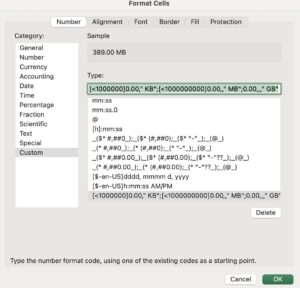
The Excel column formula does not account for files that are 1 GB or larger, but these changes worked well enough for my personal auditing purposes.