Create a Shortcut to Start XAMPP in Ubuntu
Series: WordPress Development Environment
- Install WordPress on a Ubuntu Virtual Machine using VirtualBox
- Automatically Set FTP Credentials for WordPress in a Development Environment
- Create a Shortcut to Start XAMPP in Ubuntu
- Access Ubuntu VM Files from a Windows Host
⚠️ This was originally posted on May 16, 2011. The information may be outdated!
I do most of my WordPress development using a combination of VirtualBox and Ubuntu. Over time I’ve developed a few simple tips that make my workflow a little more efficient, so I wanted to share them with anyone else who read my previous tutorial on setting up a VM as a WordPress development environment.
Running VirtualBox takes up a significant amount of RAM, so I like to shut it down when I’m not using it. XAMPP needs to be manually restarted the next time I use the VM, which can be a little tedious after a while.
To get around this, I created a simple launcher (i.e. a shortcut for us Windows folks) on the Ubuntu desktop for the Terminal command to start XAMPP. This way I can start it with just a double-click of the mouse instead of launching the terminal and typing in the command. If you want to create a similar launcher, follow these steps:
- Right-click on the Ubuntu desktop and select “Create Launcher.”
- Select “Application in Terminal” for the Type.
- Enter “Start XAMPP” for the Name (or enter whatever you want to call your shortcut).
- Enter “
sudo /opt/lampp/lampp start” into the Command field. - Click .
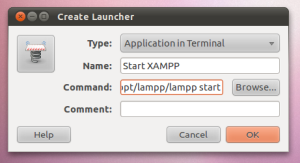
Now your laucher for XAMPP will be on the desktop and save you a few clicks and keypresses when you need to start it up. If you have any other suggestions leave them in the comments!
Comments
Comments are closed