Install WordPress on a Ubuntu Virtual Machine using VirtualBox
Series: WordPress Development Environment
- Install WordPress on a Ubuntu Virtual Machine using VirtualBox
- Automatically Set FTP Credentials for WordPress in a Development Environment
- Create a Shortcut to Start XAMPP in Ubuntu
- Access Ubuntu VM Files from a Windows Host
⚠️ This was originally posted on December 8, 2010. The information may be outdated!
Installing WordPress
To install WordPress, we’ll first need to configure our network, then we’ll install the web server software to run WordPress, and finally we’ll install and configure WordPress itself. Let’s get started!
- First, right-click on the icon that looks like two computer screens near the bottom right corner and select “Network Adapters.”
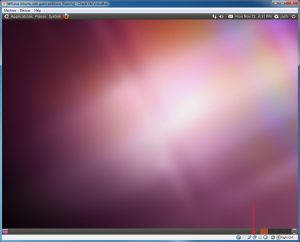
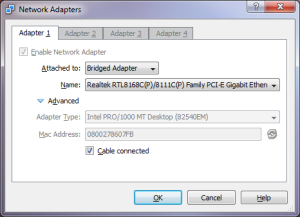
The network icon gives you access to the VM's network settings - In the Network Adapters window, change the Attached to option to “Bridged Adapter.” Select your network adapter in the Name drop-down menu and click .
Select "Bridged Adapter" in the Network Adapters window - Now open Firefox and browse to “www.apachefriends.org/en/xampp-linux.html.” Download the latest version of XAMPP for Linux (as of this writing version 1.7.3a). If asked, saveit instead of opening it.
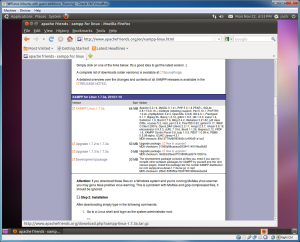
Download XAMPP for Linux 
When prompted, save XAMPP for Linux to the Downloads folder - Once the download is complete, close Firefox, then open up a terminal (Applications > Accessories > Terminal).

Open a terminal - In the terminal, type “
sudo tar xvfz Downloads/xampp-linux-1.7.3a.tar.gz -C /opt” and press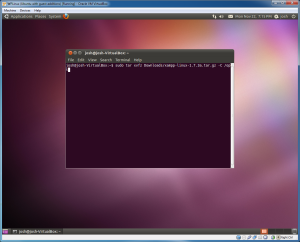
Type "sudo tar xvfz Downloads/xampp-linux-1.7.3a.tar.gz -C /opt" to install XAMPP for Linux - You’ll need to enter your password to run the installation.

Enter your password to continue - The installation will run for a few moments. You should see this when it is complete:

XAMPP installation complete - Now we can start XAMPP. Type “
sudo /opt/lampp/lampp start” to start the XAMPP server. You’ll need to do this each time you start up the VM.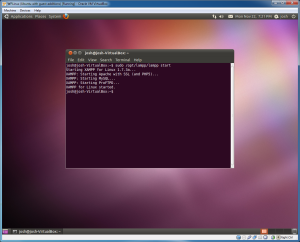
Type "sudo /opt/lampp/lampp start" to start the XAMPP server - Now we can test if the server is running. Find the IP address of the VM by going to System > Administration > Network Tools.
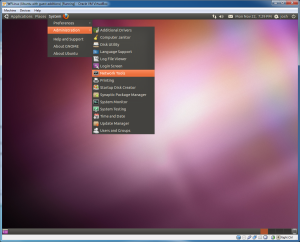
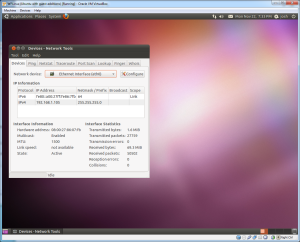
Open Network Tools in the Administration menu - Select “Ethernet Interface” from the Network devicedrop-down menu. The IPv4 address is the one we want for now. It will most likely be “192.168.1.10x” or similar.
Get the IPv4 address - Now minimize the VirtualBox VM window and open a web browser on your host OS. Type the IP address of the VM into the address bar and press . You should see the XAMPP start screen:
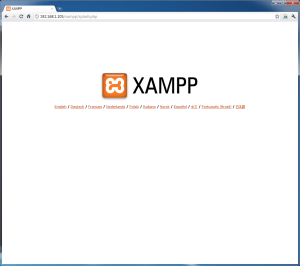
The XAMPP start screen should appear - Now we can restore the VM window and open Firefox. Type “localhost” into the browser to get to the same XAMPP start screen. Click on your language to continue.
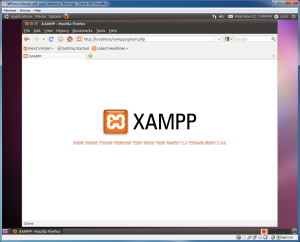
Type "localhost" to view the XAMPP start screen on the VM - We need to set up a MySQL database for WordPress to use. Click on the “phpMyAdmin” link on the left side of the page.

Click the "phpMyAdmin" link - Select “utf8_unicode_ci” in the MySQL connection collation drop-down menu, then enter “wordpress” into the Create new database field. In the drop-down menu to the left of where you just typed in “wordpress”, select “utf8_unicode_ci” again. Then click the button.
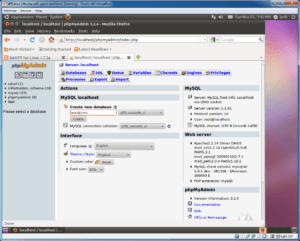
Create a new database for WordPress 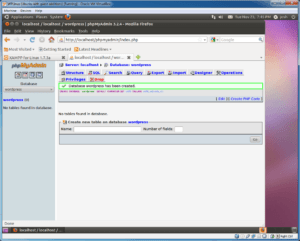
This screen will appear when the database is successfully created - Now that the MySQL database is ready, go to “http://wordpress.org/download/” in Firefox and download WordPress. Because this is Ubuntu, we need the “.tar.gz” file, not the “.zip” file (it’s the link under the button).
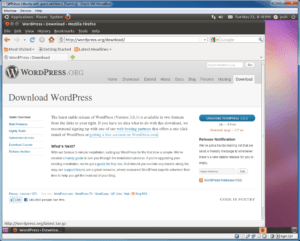
Download the ".tar.gz" file - Once the download is complete, open the menu and click on “Downloads.”
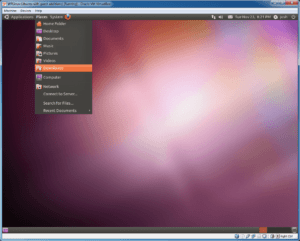
Open Downloads from the Places menu - Double-click on the wordpress tar.gz file to open it.

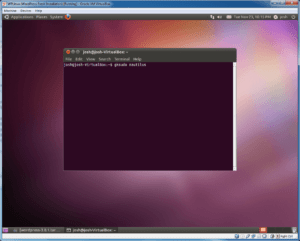
Open the wordpress tar.gz file - Minimize the window (we’ll come back to it shortly). Now we need to open the file manager with root access. Open a terminal and type “gksudo nautilus” then press . You’ll need to enter your password. Once you do, the file manager will open.
Type "gksudo nautilus" to open the file manager with root access - Click on “File System” in the left pane, then open opt > lampp.
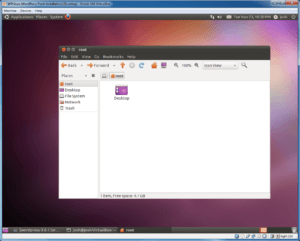
Click on "File System" on the left, then open the "opt" foder and the "lampp" sub-folder - Right-click on the htdocs folder and select “Properties.”

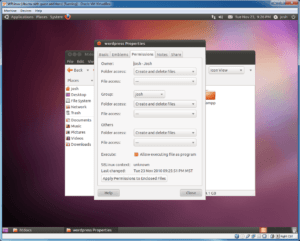
Open the htdocs Properties window - In the Permissions tab, set the Owner at the top of the Properties window to your username, then set all of the Folder access fields to “Create and delete files” to ensure that you can edit all files while developing. Click on the button and then close the Properties window.
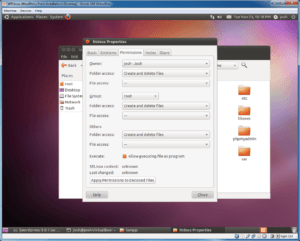
Set the permissions for the htdocs folder - Double-click on the htdocs folder to open it. Now restore the wordpress tar.gz file window that we minimized a few moments ago, then drag and drop the wordpress folder into the htdocs folder.
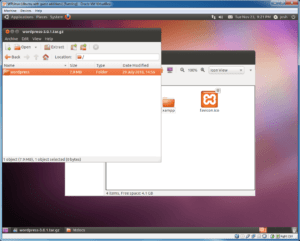
Drag and drop the wordpress folder into the htdocs folder - Once the wordpress folder has been copied over, open the Properties window for it and set the permissions to the same settings that we used previously for the htdocs folder. Click the button and close the Properties window.
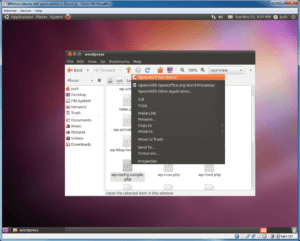
Set the Permissions for the wordpress folder - Now we need to set up the WordPress configuration file so WordPress can use the MySQL database that we created earlier. Open the wordpress folder, right-click on the wp-config-sample.php file and select “Open With Text Editor.”
Open the wp-config-sample.php file with the text editor - Scroll down to the MySQL settings section and modify the DB_NAME, DB_USER, and DB_PASSWORD settings as follows (the password is empty because we did not specify one when we created the MySQL database; this is OK for development purposes, but it should never be blank for a production server):
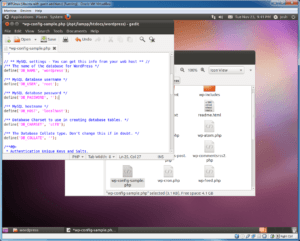
wp-config settings // ** MySQL settings - You can get this info from your web host ** // /** The name of the database for WordPress */ define('DB_NAME', 'wordpress'); /** MySQL database username */ define('DB_USER', 'root'); /** MySQL database password */ define('DB_PASSWORD', ''); - Save the changes as a newfile called “wp-config.php” and close the text editor.
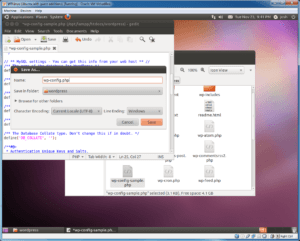
Save the changes as "wp-config.php" - Now open Firefox and navigate to “http://localhost/wordpress/wp-admin/install.php” to run WordPress’ famous five minute installation.
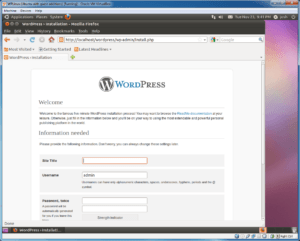
Start the WordPress installation by going to "http://localhost/wordpress/wp-admin/install.php" - Fill out the information on the page and click .
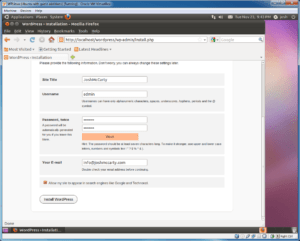
Enter the necessary information on the installation page - The installation should only take a moment. When it’s finished, click .

Once the installation completes, click the Log In button - This will bring you to the WordPress login page. Enter the username and password you created on the previous installation page (I used “admin” and “password” because those are easy to remember) and click .

Enter your username and password to login - You should now see the WordPress dashboard. Congratulations, your WordPress development site is now running on your VM!
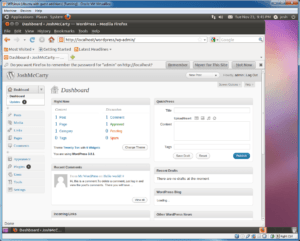
WordPress is now up and running on your VM - Now that everything is installed and configured, take a moment to create another snapshot of the VM so you can always revert it to its current state.
- As a final reminder, remember that the security on this system is planned with a development environment in mind – don’t make this system accessible from the Internet!


Conclusion
From this point on you can start developing within your VM by using it’s built-in text editor or installing a third-party editor (you can find many by searching the Ubuntu Software Center; access it from the menu). In a future post I’ll go over some additional tips and tricks so you can leave your VM window minimized and do all of your actual development using your host OS.
I hope this post is helpful for anyone who wants to use a VM and create a WordPress development server, or even anyone interested in trying out Ubuntu. Keep in mind that this process can be adapted to install other content management systems such as Drupal or Joomla if you want to try those out as well. If anyone has any other tips or ideas on using a VM to set up a development server, post them in the comments below!
Special thanks to Justin over at Chop Shop for editing and contributing to this post.
Comments
Comments are closed